Home › Uninstall apps on Mac
How to uninstall apps on Mac completely
Apple's way: quit the app, find it in Finder › Applications, run its own uninstaller if it has one, otherwise drag it to the Trash and empty the Trash. That usually leaves settings, caches and data behind in your Library folder. To remove an app completely, clean those folders too, or let Tidymint (free, open source) find them for you.
Way 1: Delete it in Finder (Apple's way)
- Quit the app (Cmd+Q). If it has a menu bar icon, quit it there too.
- Open Finder and click Applications in the sidebar.
- Drag the app to the Trash, or select it and choose File › Move to Trash. Enter your Mac password if asked.
- Empty the Trash (Finder › Empty Trash) to actually get the space back.
Apple notes that deleting an app doesn't remove documents you created with it, and doesn't cancel subscriptions you bought through it. Cancel those in the App Store or on the developer's website.
Way 2: Use the app's own uninstaller
Some big apps ship with their own uninstaller: Adobe apps, Microsoft Office, antivirus tools, printer drivers. Look for an app named Uninstall or Uninstaller in the app's folder, or a remove or reset option in the app's settings.
Apple calls this the best way when it exists, because the uninstaller also removes login items, extensions and data stored elsewhere.
A note on macOS 26 Tahoe
On older macOS versions you could open Launchpad, hold an icon until it jiggles and click the X. In macOS 26 Tahoe, Launchpad is folded into Spotlight and that delete button is gone. On macOS 26, use Finder (way 1) or the app's uninstaller (way 2). To check your version, open Apple menu › About This Mac.
Clean up the leftovers
Dragging an app to the Trash removes only the app itself. The files it created while you used it stay in your Library folder, and some apps leave several gigabytes behind.
To open it: in Finder choose Go › Go to Folder (Shift+Cmd+G) and type ~/Library. Leftovers usually live in:
| Folder | What's inside |
|---|---|
~/Library/Application Support | App data (often the largest) |
~/Library/Caches | Caches |
~/Library/Preferences | Settings files (.plist) |
~/Library/Containers | Data for App Store apps |
~/Library/Saved Application State | Saved window state |
~/Library/LaunchAgents | Items that start with your Mac |
Only move folders that carry the app's name or the developer's name (for example com.spotify.client). If you're not sure, leave it. Never delete the whole Library folder.
Way 3: Uninstall with Tidymint (free)
Checking every folder by hand takes time and it's easy to pick the wrong one. Tidymint finds the leftovers for you:
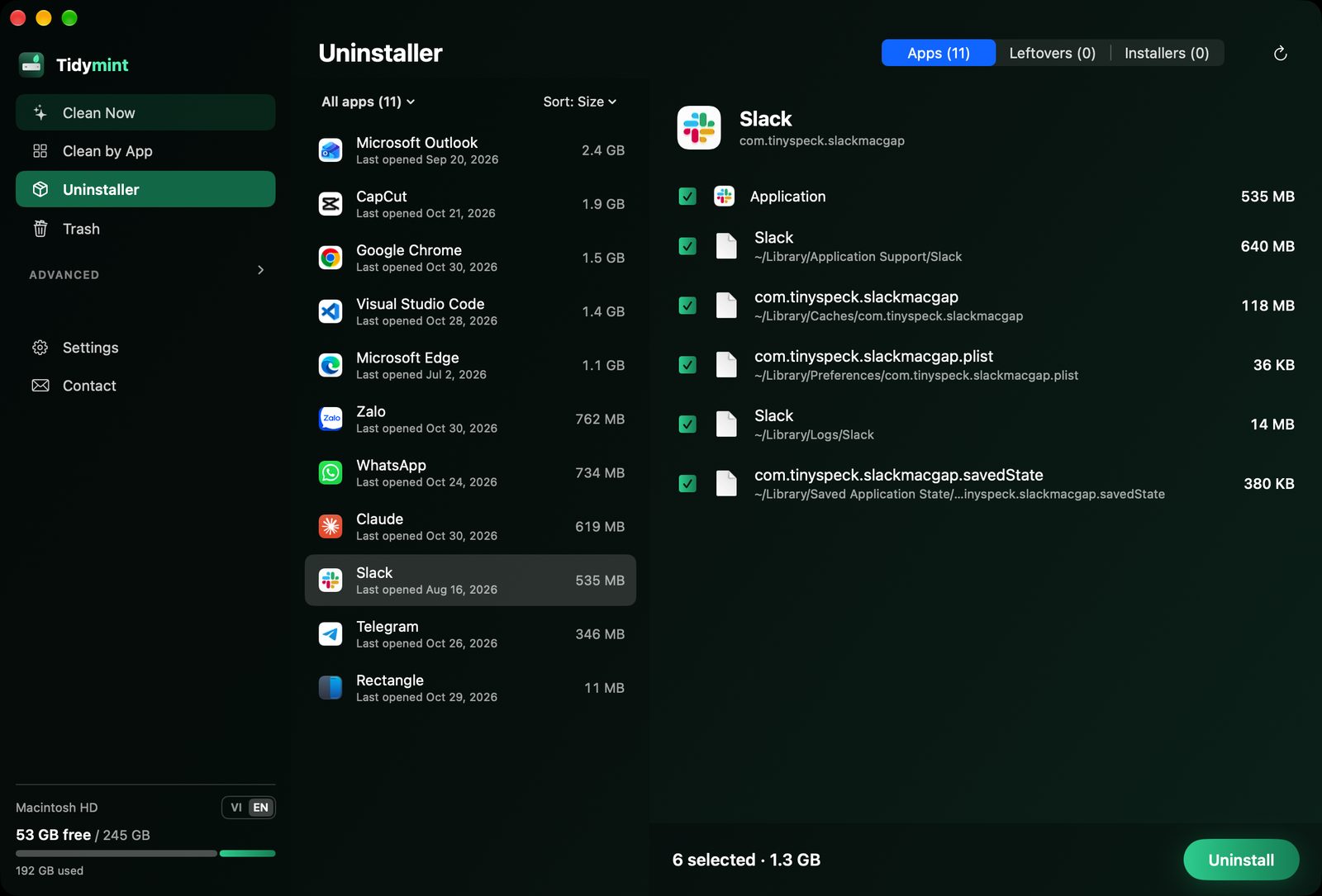
- Tidymint (free, open source): the Uninstaller lists an app with its caches, settings, logs and saved state. Only files that match the app's bundle id are pre-selected; name-only matches and anything holding a database are left to you, so mailboxes and notes don't get removed by mistake. A separate tab finds leftovers from apps you deleted long ago and old installers. Apps from the App Store or installed for every user can be removed too: macOS asks for an administrator password in its own window, and Tidymint never sees it. Everything always goes to the Trash first, and Undo puts the app and its files back where they were.
- AppCleaner (free) and Pearcleaner (free, source available): drop an app on the window and they list its related files for you to remove.
Doing it by hand vs. Tidymint
| By hand | Tidymint | |
|---|---|---|
| Speed | Open hidden folders one by one, type Terminal commands | One scan, results grouped by size |
| The big picture | You see one folder at a time | Space Lens shows the whole drive and the heaviest folders |
| Understanding your Mac | Cryptic folder names like Caches and DerivedData | Plain-language notes for common folders |
| No accidental deletes | A wrong delete is gone for good | Safe items pre-selected, the rest left to you, always to the Trash first, with Undo |
| Cost | Free, but it takes time | Free and open source |

Clean your Mac for free
Tidymint is free and open source. Everything always goes to the Trash first, so you stay in control.
When an app won't delete
- "The item is in use": quit the app completely, including its menu bar icon. If that fails, restart your Mac and try again.
- Apple apps such as Mail, Music, Books, Notes and Maps are part of macOS. You can't delete them, and you shouldn't.
- The app still runs after you deleted it: a startup item is left in
~/Library/LaunchAgentsor in System Settings › General › Login Items. Turn it off or remove it. Tidymint's Startup Items list shows every background item and flags odd names or locations.
FAQ
Does dragging an app to the Trash delete everything?
No. It removes only the app itself. Its settings, caches and data stay in your Library folder (~/Library) until you clean them up yourself or use an uninstaller.
Can I delete apps from Launchpad?
On macOS 15 and earlier, yes, for apps from the App Store. In macOS 26 Tahoe, Launchpad is part of Spotlight and has no delete button, so use Finder instead.
Will I lose my documents if I delete an app?
No. Documents you made with the app stay where they are. Only the app's own data in your Library folder goes away, and only if you clean up the leftovers.
Does deleting an app cancel my subscription?
No. Cancel App Store subscriptions in App Store › your account › Subscriptions, and web subscriptions on the developer's website.
Is uninstalling with Tidymint safe?
Tidymint moves the app and its leftovers to the Trash, so a mistake can be undone. Apps that are running are flagged and never pre-selected.
Doing it by hand vs. Tidymint
| By hand | Tidymint | |
|---|---|---|
| Speed | Open hidden folders one by one, type Terminal commands | One scan, results grouped by size |
| The big picture | You see one folder at a time | Space Lens shows the whole drive and the heaviest folders |
| Understanding your Mac | Cryptic folder names like Caches and DerivedData | Plain-language notes for common folders |
| No accidental deletes | A wrong delete is gone for good | Safe items pre-selected, the rest left to you, always to the Trash first, with Undo |
| Cost | Free, but it takes time | Free and open source |
Clean your Mac for free
Tidymint is free and open source. Everything always goes to the Trash first, so you stay in control.
