Home › Clear System Data on Mac
How to clear System Data on Mac, safely
System Data is macOS's catch-all bucket for files that don't fit another category: caches, logs, local Time Machine snapshots, old iPhone backups, developer tools and more. You can shrink it safely by restarting, emptying the Trash, deleting local snapshots, clearing user caches, removing old device backups and cleaning Xcode, Docker or AI model caches. Never delete anything inside /System or /private/var.
What is System Data?
Apple describes System Data (called "Other" on older macOS) as a general category that measures storage used by Apple and third-party files that don't fit a more specific category. In practice, it usually includes:
- App and browser caches, logs and temporary files
- Local Time Machine snapshots stored on your internal drive
- Old iPhone and iPad backups
- Developer files: Xcode build data, simulators, Docker disk images
- For AI work: downloaded model files and package caches
- Files macOS needs to run, like virtual memory and the sleep image (leave these alone)
On a Mac that has been in use for a year or two, System Data can grow to 50 GB or more, and macOS gives you no button to clear it.
Check how big it is
Open Apple menu › System Settings › General › Storage (macOS 13 Ventura or later). Wait for the bar to finish calculating, then hover over the gray segment to see the System Data size. Note the number so you can see what each step frees.
7 safe ways to shrink System Data
1. Restart your Mac
A restart clears temporary files and swap. It is free, safe, and sometimes frees several gigabytes on its own.
2. Empty the Trash and your Downloads folder
Files in the Trash still take space until you empty it. Old installers (.dmg, .pkg, .zip) in Downloads are a common hidden cost.
3. Delete local Time Machine snapshots
If you use Time Machine, macOS keeps snapshots on your internal drive for up to 24 hours and removes them when it needs space. Apple counts that space as available, so you can usually leave them. If space does not come back after a big clean-up, list and remove them in Terminal (more in our guide to local snapshots):
tmutil listlocalsnapshots /
sudo tmutil deletelocalsnapshots 2026-10-20-101500
Replace the date with one from the list. Your backups on the external Time Machine drive are not affected.
4. Clear user caches
Quit your apps, then in Finder press Shift+Cmd+G and go to ~/Library/Caches. Move the folders of apps you recognize to the Trash. Apps rebuild what they need, so the first launch afterward may be a little slower.
Use ~/Library/Caches (with the tilde, your own folder), not /Library/Caches or /System/Library/Caches.
5. Remove old iPhone and iPad backups
Open System Settings › General › Storage and click the info button next to iOS Files. Delete backups of devices you no longer own or no longer need.
6. Clean developer leftovers
- Xcode build data: move
~/Library/Developer/Xcode/DerivedDatato the Trash. Xcode recreates it. - Old simulators: run
xcrun simctl delete unavailable. - Docker: run
docker system pruneto remove unused images and containers. - node_modules in old projects you no longer work on.
7. Clean AI model caches
- Ollama: run
ollama list, thenollama rm model-namefor models you don't use. - Hugging Face: downloaded models live in
~/.cache/huggingface.
A single local model can be several gigabytes, so this is often the biggest win on an AI workstation.
What you should never delete
- Anything inside
/System,/private/var/vm(virtual memory) or/private/var/db - The whole
~/Libraryfolder, or your Photos and Mail libraries - Files you don't recognize. If you are not sure, leave it.
Also be careful with "one click" cleaners that delete permanently. If something goes wrong, there is no undo.
The faster way: let Tidymint find it
Steps 2 to 7 mean digging through hidden folders. Tidymint is a free, open-source Mac cleaner that does the looking for you:
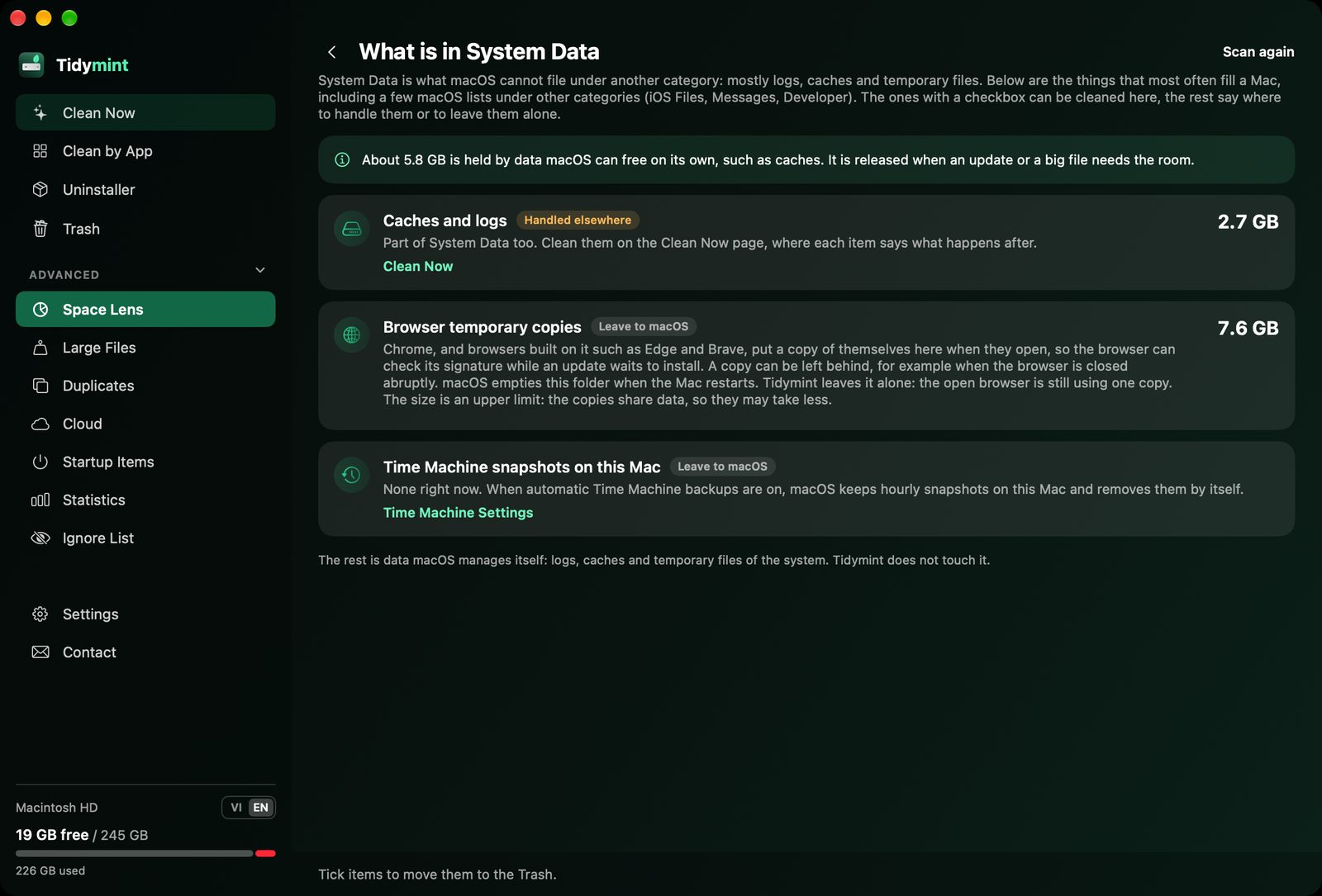
- See what is in System Data. In Space Lens, click Disk full of "System Data"? See what is in it. Tidymint lists the hidden space it can measure: iPhone and iPad backups, iOS update files, Xcode build files and simulator caches, Messages attachments, Docker, Time Machine snapshots. Each part has a plain note. Backups, update files and Xcode files can go to the Trash right there (backups are never pre-selected); for the rest it tells you where to handle it.
- Browser temporary copies. Chrome, and browsers built on it such as Edge and Brave, put a copy of themselves in a temporary folder when they open. A copy can be left behind, for example when the browser does not quit normally. macOS empties that folder when you restart, so Tidymint shows the size and leaves it to macOS. On our test Mac these copies took 7.6 GB.
- Clean Now finds user and app caches, logs, npm cache, old downloads and project drafts and shows them by group before you press Clean. Clean by App lists what Chrome, Edge, Zalo and CapCut keep. Space Lens draws a bubble map of what fills your disk, with plain-language notes for folders like
.ollama.
Everything you select goes to the Trash first, so you can check before you empty it.
Doing it by hand vs. Tidymint
| By hand | Tidymint | |
|---|---|---|
| Speed | Open hidden folders one by one, type Terminal commands | One scan, results grouped by size |
| The big picture | You see one folder at a time | Space Lens shows the whole drive and the heaviest folders |
| Understanding your Mac | Cryptic folder names like Caches and DerivedData | Plain-language notes for common folders |
| No accidental deletes | A wrong delete is gone for good | Safe items pre-selected, the rest left to you, always to the Trash first, with Undo |
| Cost | Free, but it takes time | Free and open source |

Clean your Mac for free
Tidymint is free and open source. Everything always goes to the Trash first, so you stay in control.
FAQ
Is it safe to delete System Data on Mac?
Parts of it, yes: caches, old downloads, local Time Machine snapshots, old device backups and developer build data are safe to remove. Files macOS needs to run, such as virtual memory, are not. Never delete anything inside /System or /private/var.
Why is my System Data so large?
The usual causes are local Time Machine snapshots, app and browser caches, old iPhone backups, Xcode and Docker data, and downloaded AI models. On developer and AI machines it can pass 100 GB.
Will System Data shrink on its own?
Partly. macOS removes local snapshots and some caches when space runs low, and a restart clears temporary files. It will not remove developer files, models or old backups for you.
Does restarting clear System Data?
It clears temporary files and swap, which can free a few gigabytes. Larger items like snapshots and caches need the other steps.
Can Tidymint delete System Data?
Not in one go, and nothing can safely. Tidymint shows what System Data is made of and lets you move iPhone backups, iOS update files and Xcode files to the Trash; caches, logs and old downloads go through Clean Now. It never touches Apple system folders.
Doing it by hand vs. Tidymint
| By hand | Tidymint | |
|---|---|---|
| Speed | Open hidden folders one by one, type Terminal commands | One scan, results grouped by size |
| The big picture | You see one folder at a time | Space Lens shows the whole drive and the heaviest folders |
| Understanding your Mac | Cryptic folder names like Caches and DerivedData | Plain-language notes for common folders |
| No accidental deletes | A wrong delete is gone for good | Safe items pre-selected, the rest left to you, always to the Trash first, with Undo |
| Cost | Free, but it takes time | Free and open source |
Clean your Mac for free
Tidymint is free and open source. Everything always goes to the Trash first, so you stay in control.
