Home › Install step by step
Install Tidymint on your Mac, step by step
Tidymint is not notarized by Apple yet, so the first launch is blocked and you need to click Open Anyway in System Settings › Privacy & Security, under the Security heading halfway down the page. The whole thing takes about two minutes and only happens once.
Step 1: Download and unzip
Click Download Tidymint. Tidymint.zip (about 3 MB) lands in Downloads. Double-click it and macOS unzips the Tidymint app next to it.

Step 2: Move to Applications
Drag Tidymint from Downloads to Applications in the Finder sidebar. It would run from Downloads too, but in Applications Spotlight finds it, the Dock keeps it, and a Downloads cleanup can't delete it by accident. You can delete the zip afterwards.

Step 3: First launch, click Done
Double-click Tidymint in Applications. macOS shows "Tidymint" Not Opened because the app is not notarized. Click Done. Do not click Move to Trash.

Step 4: Click Open Anyway
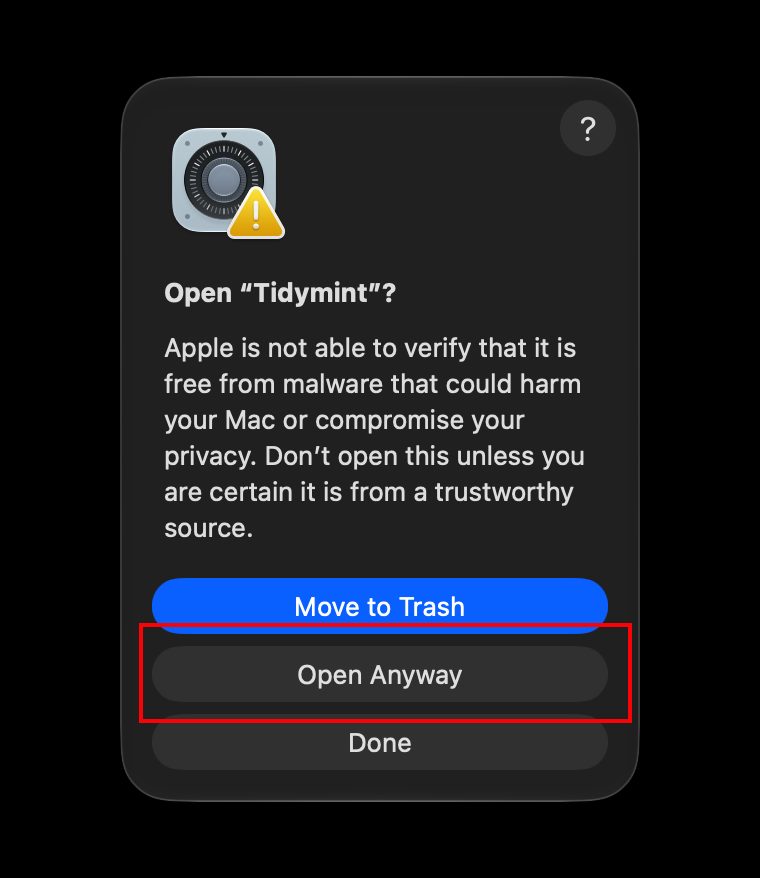
Open System Settings › Privacy & Security. Scroll to the Security heading, about halfway down, right under Allow applications from. The line "Tidymint" was blocked to protect your Mac has an Open Anyway button. Click it.

Step 5: Confirm and enter your password
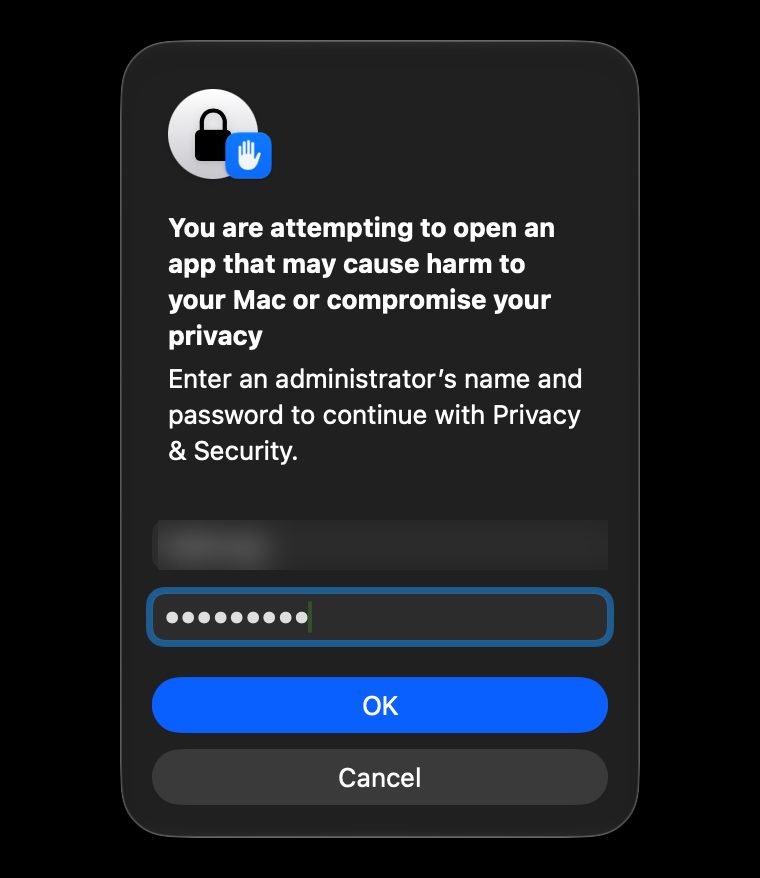
macOS asks once more: Open "Tidymint"?. Click Open Anyway (the middle button, not the blue Move to Trash). Then enter your Mac password or use Touch ID and click OK. Tidymint opens. From now on a double-click is enough.
Step 6: Grant Full Disk Access
Optional, but without it Mail, Messages and parts of Library show as empty in scans. In Privacy & Security, scroll up to the privacy list (top half of the page) and click Full Disk Access. Faster: type "Full Disk" in the search box at the top left of System Settings.
Find Tidymint and turn its switch on. If it is not listed, click + below the list, pick Tidymint in Applications and click Open. If Tidymint is running, macOS asks you to quit and reopen it; agree.

Tidymint uses this permission only to measure sizes and move files to the Trash. It works offline and sends nothing anywhere, see the privacy policy.

Clean your Mac for free
Tidymint is free and open source. Everything always goes to the Trash first, so you stay in control.
Updating to a new version
When a new version is out, Tidymint shows a line with a Download button in Settings (it checks once a day, or click Check now). Updating takes about a minute:
- Quit Tidymint. Download Tidymint.zip, open it, drag Tidymint to Applications and click Replace.
- Open the app. macOS blocks it once, as in step 3: repeat steps 3 to 5 (click Done, click Open Anyway in Privacy & Security, enter your password).
You do not need to grant Full Disk Access again. Your settings, theme, project folders and ignore list stay as they were.
No Open Anyway button?
- The button only appears for a while after a blocked launch. Double-click Tidymint again, click Done, then return to Privacy & Security.
- It sits under the Security heading in the middle of the page, not at the bottom.
- On a managed work Mac an administrator may have locked this; ask IT.
FAQ
Why does macOS block Tidymint?
Tidymint has no Apple Developer account yet (99 USD a year) and so is not notarized. Every unnotarized app is blocked the same way. The source code is public on GitHub.
Is clicking Open Anyway safe?
You are allowing one specific app, not switching off protection. Only do it for apps downloaded from the official site tidymint.app or the project's GitHub.
Do I have to repeat this for updates?
Yes, each new download is blocked once until the app is notarized. Repeat steps 3 to 5, about a minute. Full Disk Access and your settings are kept.
What if I skip Full Disk Access?
The app still runs and cleans caches, large and duplicate files in your home folder. Only macOS-protected folders such as Mail and Messages show as empty. On the first scan macOS asks separately for Desktop, Documents and Downloads: click Allow. The home page also shows a reminder with a button that opens this setting.
Clean your Mac for free
Tidymint is free and open source. Everything always goes to the Trash first, so you stay in control.
