Home › Mintclip
Copied Once, Found Again: Clipboard History on Mac
Copy something new and the old one on the clipboard is replaced, so what you copied yesterday is hard to get back. Since macOS 26, Spotlight has a clipboard history. This guide shows how to use it, then Mintclip, the part of Tidymint that keeps your copy history: your last 100 items (500 with Plus), text in images searchable, one click pastes straight in, apps you choose skipped, all on your Mac.
The built-in way: clipboard history in Spotlight (macOS 26 and later)
- Press ⌘Space to open Spotlight.
- Click the Clipboard button next to the search field, or press ⌘4. The first time, you may need to click Enable.
- Select an item and press ⌘C (or click the copy button next to it), then paste as usual.
- To erase it: the More button next to the search field › Clear History.
Apple also notes that sensitive information may appear on the clipboard. Macs on macOS 15 or earlier don't have this.
What Mintclip adds
Spotlight is enough when you just need back a bit of text you copied. Mintclip is for days spent copying and pasting:
| Spotlight (built in) | Mintclip | |
|---|---|---|
| Runs on | macOS 26 and later | macOS 14 and later |
| Pasting | Select, ⌘C, click where it goes, then ⌘V | One click pastes into the app you're using, formatting kept |
| Passwords, sensitive items | Apple notes sensitive information may appear in it | Skips password managers and apps you choose |
| Deleting | Clear History: the whole history | One item, the last 15 minutes or last hour, or everything |
| How long it keeps | Up to 7 days (per MacRumors, macOS 26.1) | Your last 100 items (500 with Plus), or on its own after 1 hour, 24 hours, 7 days |
| Images | Apple says it searches text and files you copied | Keeps images, finds text inside them |
| Search and filters | Spotlight's search field | Type to search, filter by kind, by app, Today, Last 7 days |
| Works with | Used inside Spotlight | Drag images and files to the Mintdrop shelf; pin the list beside your work |
When Mintclip helps
- Get back what you just copied over: you copy an address, then copy something else by mistake. Open Mintclip and the address is still there.
- Fill in a long form: copy a name, a phone number and an order number from one place, then paste each into its field.
- Find yesterday's screenshot: type a word that appears in the picture.
Turn on Mintclip
- Open Tidymint and choose TOOLS › Mintclip in the sidebar.
- Click Turn on Mintclip. A paperclip icon appears in the menu bar.
- The first time Mintclip reads the clipboard, macOS asks whether Tidymint may paste from other apps. Allow it. Change it later in
System Settings › Privacy & Security(Paste from Other Apps); the Mintclip page has a button that opens it.
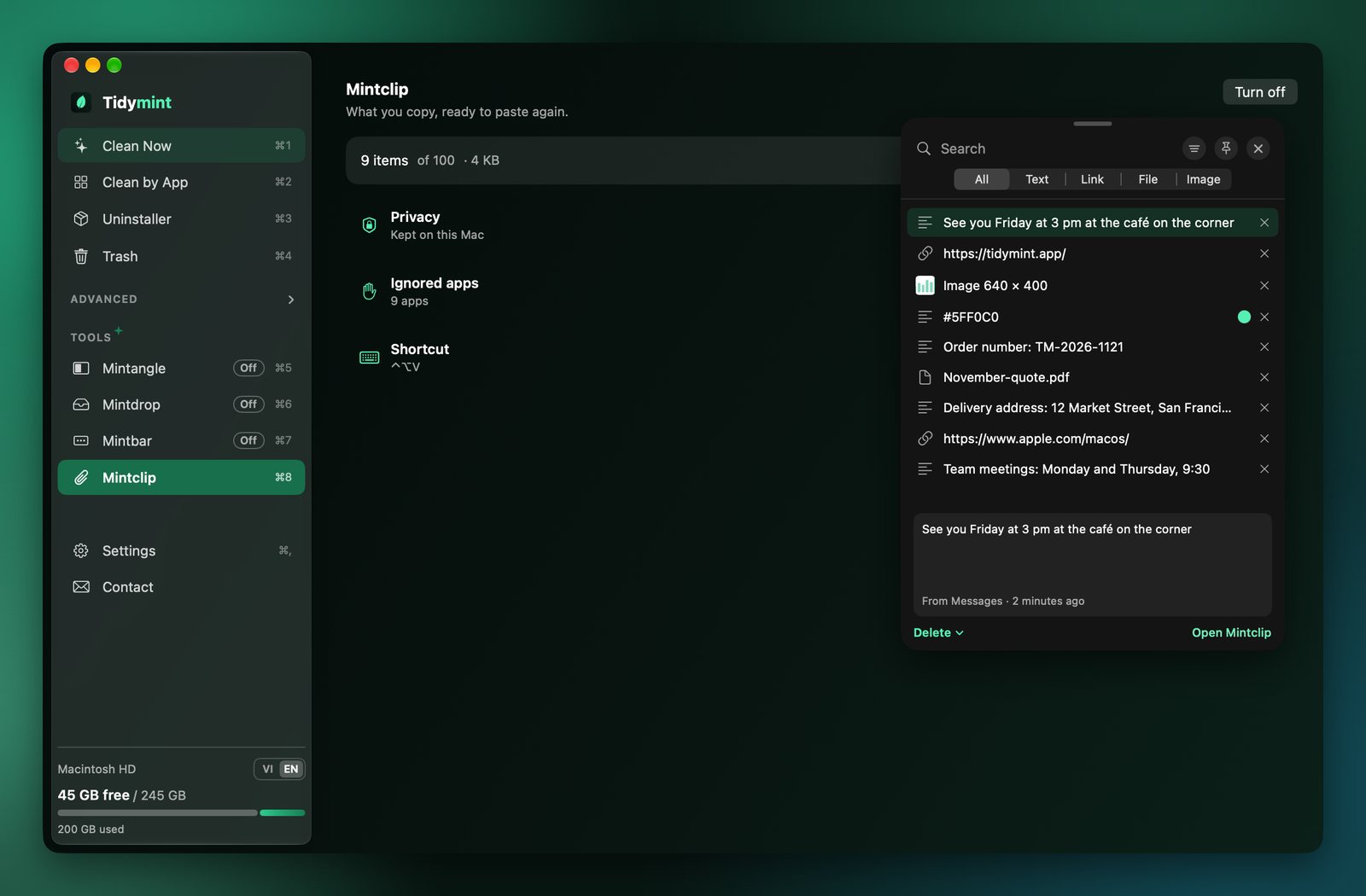
Open the list: 2 ways
- Click the paperclip icon in the menu bar.
- Press ⌃⌥V (Control, Option, V). Want other keys? On the Mintclip page, under Shortcut, click the keycap and type new keys.
The newest item is at the top. Click outside, press Esc or ⌘W to close it. Filling in a long form? Click the pin button next to the search field and the list stays beside your work. Grab the small bar at the top edge to move it.
Search and filter
- Type to search as soon as the list opens, text in images included: macOS reads it right on your Mac (English and Vietnamese).
- Filter by kind: All, Text, Link, File, Image.
- The filter button next to the search field: by the app you copied from, Today, Last 7 days.
- Up and down arrows select; the preview below shows the full content, the source app and when you copied it.
Paste
- Click an item (or select it and press Return): Mintclip pastes it straight into the app you're using, formatting kept (bold, links, text colour). With Plus, hold ⌥ and click to paste without formatting.
- Pasting directly needs Accessibility permission for Tidymint. Without it the item goes on the clipboard and you press ⌘V as usual.
- A colour code (like
#33AA77) shows a colour dot beside it.
Drag it out
Drag an item out of the list and drop it somewhere else:
- An image becomes a PNG file: drop it in Finder, an email, or on the Mintdrop shelf.
- Links and text: drop them into another app's text field.
- A file item: drop it on the Mintdrop shelf to gather it with other files.
What Mintclip keeps, what it skips
| Mintclip keeps | Mintclip skips |
|---|---|
| Text, with its formatting, up to 10,000 characters an item (longer text is cut) | Content an app marks as secret or temporary (the nspasteboard.org convention password managers often use) |
| Links | Anything copied while you're using Passwords, 1Password, Bitwarden, KeePassXC and a few other password managers |
| Paths of files you copied in Finder | Apps you add to Ignored apps |
| Images (there's a switch to turn this off), each in a file only your user account can read | Empty text |
Not every app marks its secrets. If you copy something sensitive from an unfamiliar app, delete that item, or add the app to Ignored apps.
Delete
- The X next to an item deletes it.
- The Delete menu at the bottom of the list: Last 15 minutes, Last hour, or Everything (asks once more).
- On the Mintclip page: Delete items after 1 hour, 24 hours or 7 days; by default nothing is deleted by age, only the oldest items once the list is full.
- Keep in memory only: nothing is written to disk, and it's gone when Tidymint quits.
The Mintclip page also shows how much space the history takes.
Privacy
The history sits in one file on your Mac that only your user account can read. What you copy never leaves your Mac unless you turn on iCloud sync in Plus (off by default), which keeps it in your own iCloud Drive. No Tidymint account needed. The history is not part of the settings backup file. Details: Does Tidymint send your data anywhere?
Free and Plus
Keeping, finding and pasting back are free. Plus is for clean pasting and a longer history.
See 4 more Plus features
Mintclip Plus: $3.99, one-timeTry it for 14 days, no card needed. All five tools: $10.99.
See Mintclip Plus price →FAQ
Is Mintclip free?
Yes. Free Mintclip keeps 100 items, with no time limit. Mintclip Plus keeps 500, adding pins and paste without formatting.
Does Mintclip keep passwords?
It skips content password managers mark as secret, and anything copied while you're using popular password managers. An app that marks nothing can't be told apart, which is why you have Ignored apps and Delete last 15 minutes.
Why does macOS ask about pasting from other apps?
Since macOS 15.4, macOS asks before an app reads the clipboard without you choosing Paste. Mintclip reads it each time you copy, so it needs this permission.
⌃⌥V does nothing?
Another app may hold that shortcut; the Mintclip page says so. Pick other keys under Shortcut.


Clean your Mac for free
Free to clean, with an open-source core. Everything always goes to the Trash first, so you stay in control.
Sources
- Apple: Search your clipboard history (macOS 26)
- MacRumors: macOS 26.1 adds clipboard history retention options (4 Nov 2025)
- Apple: NSPasteboard accessBehavior (macOS 15.4 asks before reading the clipboard)
- nspasteboard.org: marking secret and temporary content
- Tidymint privacy policy (PRIVACY.md)
