Home › Remove duplicate files on Mac
How to remove duplicate files on Mac, safely
Duplicates pile up from downloading the same file twice, exporting again, and copying folders between projects. For photos, use Photos › Utilities › Duplicates and merge. For other files, compare by content, not by name, always keep one copy, and before deleting a copy inside a project, check that no script points to that exact path. Move duplicates to the Trash rather than deleting them outright.
Why duplicates pile up
- The same file downloaded twice:
report.pdf,report (1).pdf,report (2).pdf. - Video and design exports saved again after a small change.
- Folders copied between projects "just to be safe".
- Photos imported from a phone and also saved from a chat app.
Photos: use the built-in Duplicates
If your pictures live in the Photos app, use Apple's own tool:
- Open Photos and click Duplicates under Utilities in the sidebar.
- Select the duplicates to merge (Command-A selects all).
- Click Merge and confirm. One original stays in your library; the rest go to Recently Deleted, where you can recover them for 30 days.
Never delete files inside the Photos library package in Finder. Always work from the Photos app.
Other files: find them by hand
- In Finder, search your Downloads for
(1)andcopyto catch the obvious ones. - Sort folders by Size: identical files often sit next to each other with the same size.
- Before deleting, open both copies. Same name and size is a strong hint, not proof that two files are identical.
This works for a few files. For a whole drive, Tidymint compares file contents for you, which is faster and more reliable.
The real risk: breaking a project
Most duplicate finders only ask "are these two files the same?". For people who write scripts, automations or AI skills, a second question matters: does something point to this exact copy?
A Python script that reads data/prices.csv, a shell script that copies assets/logo.png, a skill file that names a template: delete that copy and the script breaks, even though an identical file exists somewhere else. The file wasn't junk. Its location was the point.
Four rules for a safe clean-up
- Match by content. Same name does not mean same file, and the same file can have different names.
- Always keep one copy, preferably the one outside Downloads, Desktop and temp folders.
- Check your projects before removing a copy that lives inside one.
- Use the Trash, not permanent delete, so a mistake costs you a drag back, not a lost file.
Do it with Tidymint
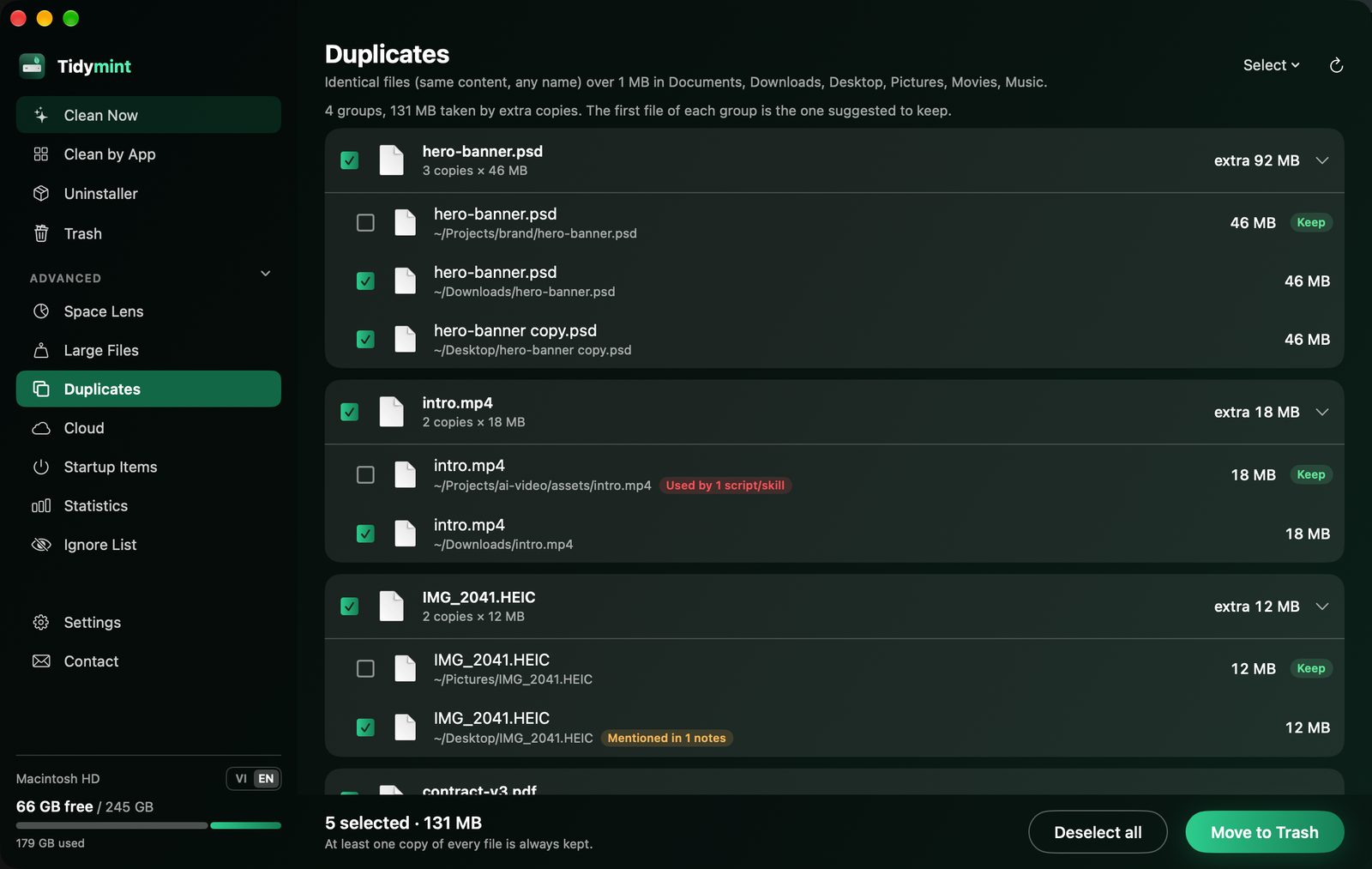
Tidymint is a free, open-source Mac cleaner built around those four rules:
- It scans Documents, Downloads, Desktop, Pictures, Movies and Music for files of 1 MB or more and matches them by content, not by name.
- It skips folders like
.git,node_modules, virtual environments,buildand DerivedData. - One copy is always kept: preferably one outside Downloads, Desktop and temp folders, then the one with the shorter path.
- Before anything moves, it offers to check your project folders (set in Settings). It searches scripts and notes there for each file name, shows which script uses which copy, and offers to untick those and remove the rest.
- Everything always goes to the Trash first, with Undo.
Doing it by hand vs. Tidymint
| By hand | Tidymint | |
|---|---|---|
| Speed | Open hidden folders one by one, type Terminal commands | One scan, results grouped by size |
| The big picture | You see one folder at a time | Space Lens shows the whole drive and the heaviest folders |
| Understanding your Mac | Cryptic folder names like Caches and DerivedData | Plain-language notes for common folders |
| No accidental deletes | A wrong delete is gone for good | Safe items pre-selected, the rest left to you, always to the Trash first, with Undo |
| Cost | Free, but it takes time | Free and open source |

Clean your Mac for free
Tidymint is free and open source. Everything always goes to the Trash first, so you stay in control.
FAQ
Is it safe to delete duplicate files on Mac?
Yes, if you keep one copy, match files by content rather than name, and move them to the Trash so you can undo. Check first that no script or project points to the copy you remove.
Does macOS have a duplicate file finder?
For photos and videos, yes: Photos › Utilities › Duplicates lets you merge them. For other files, macOS has no built-in duplicate finder.
Can two files with the same name be different?
Yes. Name and size are only hints. Comparing the content (a checksum) is the reliable way to know two files are identical.
Which copy should I keep?
Usually the one inside an organised folder rather than Downloads or Desktop. If a script or project uses one copy, keep that one.
How does Tidymint protect projects?
Before removing duplicates, Tidymint can search the project folders you add in Settings for scripts and notes that mention each file, show you which ones are used, and leave them in place.
Doing it by hand vs. Tidymint
| By hand | Tidymint | |
|---|---|---|
| Speed | Open hidden folders one by one, type Terminal commands | One scan, results grouped by size |
| The big picture | You see one folder at a time | Space Lens shows the whole drive and the heaviest folders |
| Understanding your Mac | Cryptic folder names like Caches and DerivedData | Plain-language notes for common folders |
| No accidental deletes | A wrong delete is gone for good | Safe items pre-selected, the rest left to you, always to the Trash first, with Undo |
| Cost | Free, but it takes time | Free and open source |
Clean your Mac for free
Tidymint is free and open source. Everything always goes to the Trash first, so you stay in control.
