Home › Mintbar
A Tidy Menu Bar, With Every Icon Still One Click Away
Mintbar gathers several menu bar icons behind one group icon you choose. Click the group and its apps open right below; click an app to open its menu. Free: 2 groups of 4 apps, no limit with Plus. Part of Tidymint from 0.6.0, off by default. On macOS 27, macOS asks for Accessibility and Screen Recording only when you turn it on.
When to use it
- The menu bar is full: every app adds an icon, until some slide under the menus of the app in front.
- Icons you still use but want tidied away: a VPN, cloud sync, an input menu, an AI assistant.
- You want icons sorted by job: one group for work, one for connections.
Mintbar quits nothing. Each app keeps running as before; only its icon moves behind the group icon.


Turn on Mintbar
- Open Tidymint, choose TOOLS › Mintbar in the sidebar, and click Turn on.
- On macOS 27, macOS asks for two permissions. Open System Settings › Privacy & Security and switch Tidymint on under Accessibility and under Screen & System Audio Recording.
- After allowing Screen Recording, reopen Tidymint.
Tidymint has to be in the Applications folder. From anywhere else Mintbar hides nothing, and its page says why.
Make a group
- Under Groups, click New group.
- Name it and pick an icon: 12 are free, Plus has every icon set and your own colors.
- Click Add apps to see the full list, then tick the apps to gather. Their icons leave the menu bar and the group icon takes their place.
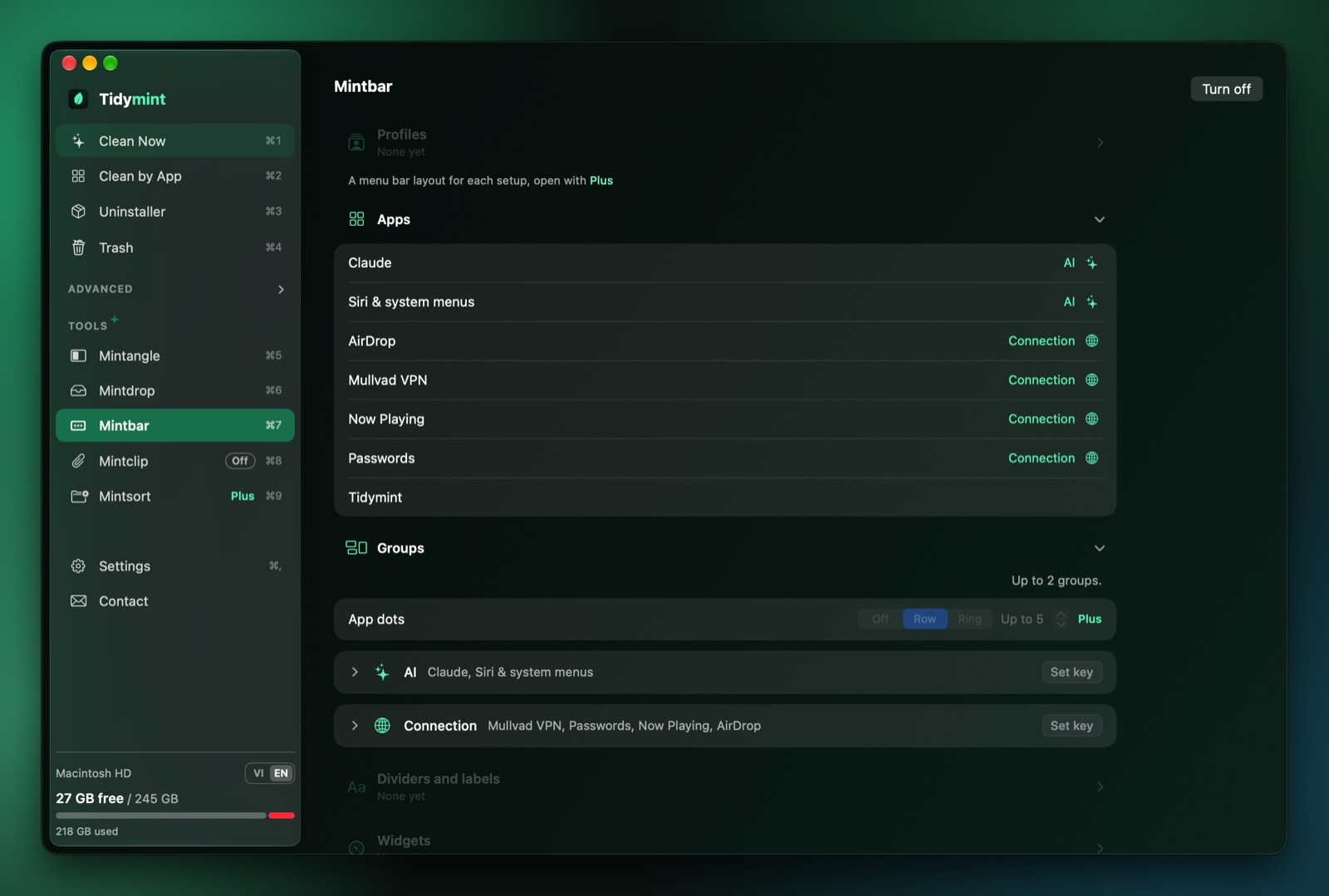
A row of small dots under the group icon shows one dot per app. An app can sit in several groups.
Open an app from a group
- Click the group icon: its apps open right below. Click again, or press Esc, to close.
- Click one of those apps: its menu or panel opens. An app that is not running is started.
- Option-click the group icon: opens the Mintbar page.
- Reorder icons: hold ⌘ and drag an icon to its new place.

Good to know
- The clock and Control Center always stay in the menu bar. Mintbar never offers them for a group.
- Focus, Now Playing, AirDrop and the user menu: on macOS 27, while Mintbar hides any icon, macOS puts these away by itself. Add them to a group to reach them.
- Icons you switched off in System Settings › Menu Bar are listed apart, under "Off in macOS". Tidymint only reads that list and never changes macOS settings.
- Turn Mintbar off and every icon is back in the menu bar at once.
macOS 14 to 26
These versions have no groups. Mintbar adds an arrow and a thin line to the menu bar: hold ⌘ and drag the icons to hide to the left of the line, then click the arrow (or press ⌃⌥B) to hide or show them. This way needs no permission.
What the two permissions are for
Apple says Accessibility lets an app control your Mac, and that you should grant it only to apps you trust. On macOS 27, Mintbar uses the two permissions like this:
- Accessibility: to see which apps have a menu bar icon and where it is, and to open the icon you pick from a group. To open it, Mintbar may click that icon for you and then puts the pointer back. It does not read what is inside windows and does not record the keys you type.
- Screen Recording: to take a picture of the menu bar icon of each app in a group, so the group shows that same icon. Only the icon's own slot is captured, and only while the icon is in view. The pictures stay on your Mac and are deleted when the app leaves the group or when you turn Mintbar off.
Icon pictures and what is on your screen never leave your Mac. More: Does Tidymint send your data anywhere?
Free and Plus
Two groups are free. Plus is for when your menu bar needs more than that.
See 7 more Plus features
Mintbar Plus: $3.99, one-timeTry it for 14 days, no card needed. All five tools: $10.99.
See Mintbar Plus price →FAQ
Is Mintbar free?
Yes. Free Mintbar has 2 groups of 4 apps, with no time limit. Mintbar Plus has no limit on groups or apps.
How many icons can Mintbar gather?
The free version has 2 groups of up to 4 apps each. Plus has no limit. An app can sit in several groups.
Why does Mintbar need Screen Recording?
So the group can show each app's own menu bar icon. On macOS 27, getting that picture takes this permission. Mintbar captures only the icon's slot in the menu bar. The pictures stay on your Mac and are deleted when the app leaves the group or when you turn Mintbar off.
Focus or Now Playing disappeared after I turned Mintbar on?
On macOS 27, while any icon is hidden, macOS puts these icons away by itself. Add them to a group and you can reach them again.
Mintbar says it could not hide the icons?
Check that Tidymint is in the Applications folder and switched on under both Accessibility and Screen Recording. After allowing Screen Recording, reopen Tidymint.
What happens if I turn Mintbar off?
Every icon returns to the menu bar at once and the icon pictures are deleted. The two permission switches stay in System Settings until you turn them off yourself.


Clean your Mac for free
Free to clean, with an open-source core. Everything always goes to the Trash first, so you stay in control.
Sources
- Apple: What's in the menu bar on Mac? (hold Command and drag to rearrange)
- Apple: Change Menu Bar settings on Mac
- Apple: Allow accessibility apps to access your Mac
- Apple: Control access to screen and system audio recording on Mac
- Tidymint privacy policy (PRIVACY.md)
